|
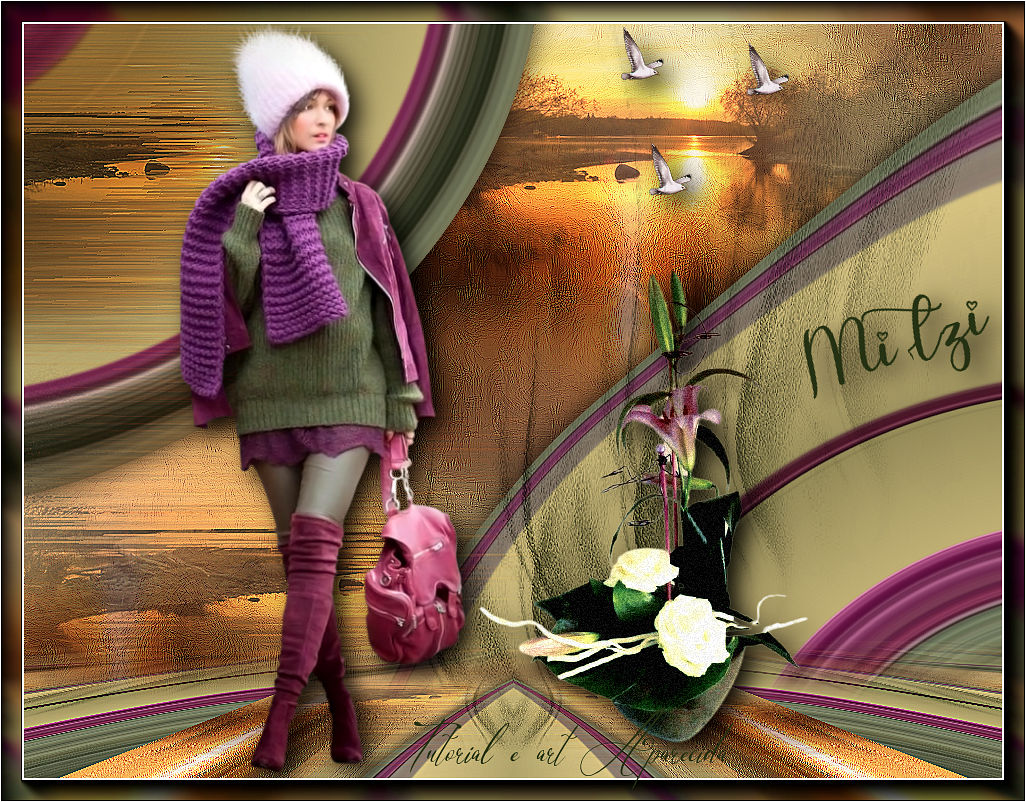
Mitzi
TRADUÇÕES

MATERIAL

Preset: Preset_CloneBrush_aplicatubelica --
Salvar na pasta Presets do PSP.
Preset: Preset_SmudgeBrush_flood_mara1 --
Salvar na pasta Presets do PSP.
Tubes: femmeVSP214
199_paysage_p3_animabelle
Deco: 1223222279_gifs_animaux
Callitubes-151flores
Texto (nome): nome_roberta maver
nome_branco
Mask: cas_Mask_0117_12
Marca-d'água.
Efeitos do PSP.
Versão usada: PSP X9.
PLUGINS
Plugin Kiwi's Oelfilter → Zig-Zack
Plugin MuRa's Meister → Perspective Tiling
Plugin MuRa's Seamless → Emboss at Alpha
Plugin AAA Frames → Foto Frame
Plugin AAA Filters → Custom
TUTORIAL
|
Esta seta marca sua linha
Clique e arraste para movê-la
|
|
1_.
Abra uma nova imagem transparente de 1024 x 800 px.
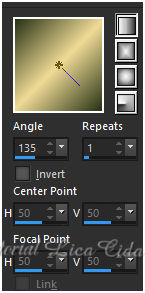
Pinte com o gradiente formado pelas cores #283216 e #efdb95.
Configure: Style: Linear — Angle: 135 — Repeats: 1 — Invert desmarcado.
Layers → Duplicate.
Retire a visibilidade da cópia e ative a Raster 1.
2_.
Selections → Select All.
Edit → Copy no tube femmeVSP214 (use o tube principal)
Edit → Paste Into Selection.
Selections → Select None.
Effects → Image Effects → Seamless Tiling: Default.
3_.
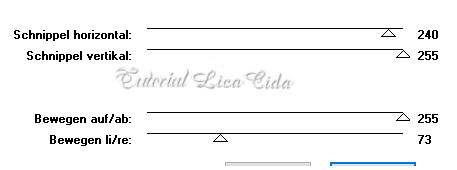
Plugin Kiwi's Oelfilter → Zig-Zack.

Haverá mudanças dependendo do tube usado.
4_.
Com a ferramenta Magic Wand (Default) — Tolerance: 10, selecione a maior parte colorida.
Pressione a tecla Delete (deixe selecionado).
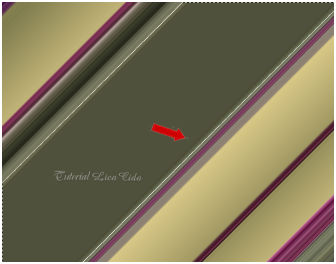
Ative a visibilidade da cópia e ative essa layer (Copy of Raster 1).
5_.
Selections → Select All.
Edit → Copy no tube 199_paysage_p3_animabelle
Edit → Paste Into Selection.
Selections → Select None.
Effects → Image Effects → Seamless Tiling: Default.
6_.
Adjust → Blur → Motion Blur (aplique três vezes).
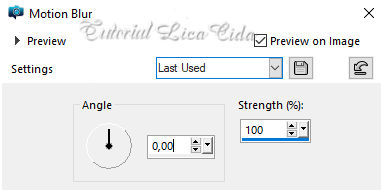
7_.
Effects → Art Media Effects → Brush Strokes — Color: Foreground.
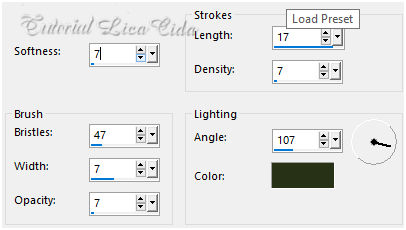
Effects → Edge Effects → Enhance More.
Layers → Arrange → Move Down.
8_.
Layers → New Raster Layer.
Ative a ferramenta Clone Brush e procure o Preset_CloneBrush_aplicatubelica.
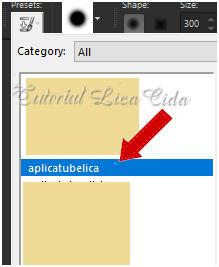

Com o botão direito do mouse, clique na parte desejada da paisagem.
Aplique o tube com o botão esquerdo do mouse no top.
Layers → Duplicate.
9_.
Ative a ferramenta Smudge e procure o Preset_SmudgeBrush_flood_mara1.
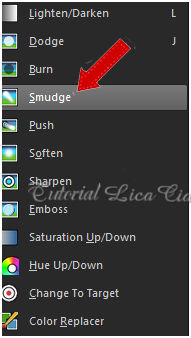
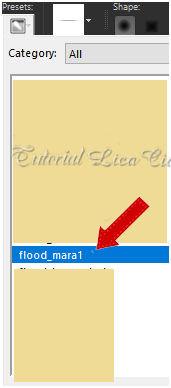

Suavize o efeito da mesma paisagem e complete a parte inferior (use a gosto e observe o modelo).
Layers → Duplicate.
Layers → Arrange → Bring to Top.
10_.
Posicione como no modelo, a gosto.
Adjust → Sharpness → Sharpen (use nas layers da paisagem).
11_.
Ative a Raster 1.
Effects → Distortion Effects → Pinch — Strength: 100%.
Effects → 3D Effects → Drop Shadow: 0 / 0 / 80 / 40,00 — Color: #000000.
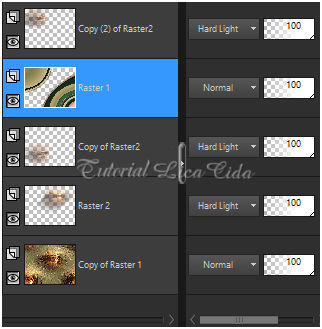
Altere os Blend Modes e a Opacity das layers.
Usei pássaros como deco.
12_.
Ative a layer superior.
Layers → New Raster Layer.
Pinte com a cor usada no Foreground: #283216.
Layers → New Mask Layer → From Image: cas_Mask_0117_12.
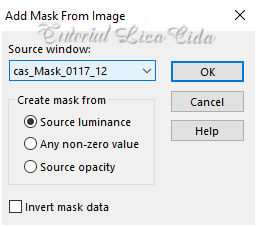
Effects → Edge Effects → Enhance.
Layers → Merge → Merge Group.
Plugin MuRa's Seamless → Emboss at Alpha — Default.
13_.
Effects → Image Effects → Seamless Tiling: Stutter Diagonal (aplique três vezes).
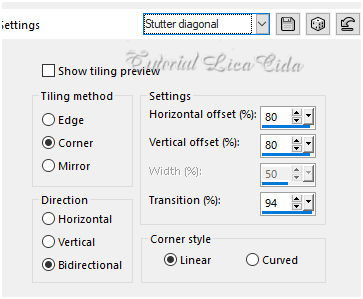
Image → Mirror → Mirror Horizontal.
Blend Mode: Multiply — Opacity: 70%.
14_.
Edit → Copy Special → Copy Merged.
Edit → Paste As New Layer.
15_.
Plugin MuRa's Meister → Perspective Tiling — Default — Height: 20 (demais valores iguais).
Effects → Reflection Effects → Rotating Mirror: 0 / 180 — Reflect.
Com a ferramenta Magic Wand — Feather: 60, clique na parte transparente.
Pressione a tecla Delete (várias vezes, para suavizar o efeito).
Selections → Select None.
Adjust → Sharpness → Sharpen More.
16_.
Ative a Copy of Raster 1.
Layers → Duplicate.
Blend Mode: Screen (na layer duplicada).
17_.
Edit → Copy no texto do nome Mitzi
Edit → Paste As New Layer.
Use a gosto.
18_.
Edit → Copy no tube femmeVSP214
Edit → Paste As New Layer.
Posicione.
19_.
Edit → Copy no Callitubes-151flores
Edit → Paste As New Layer.
Layers → Merge → Merge Visible.
20_.
Plugin AAA Frames → Foto Frame — Width: 20 — Matte: 2 (demais valores iguais).
21_.
Plugin AAA Filters → Custom → Sharp (Default).
Image → Add Borders: 1 px, Symmetric marcado — Color: #ffffff.
Aplique a marca-d'água.
Assine e salve.
Espero que gostem.
Obrigada!
Aparecida / LicaCida, fevereiro de 2022.
Rio de Janeiro - Brasil.

VOLTAR
Copyright ©2026 - Web Design - Naise Minas
|


