|
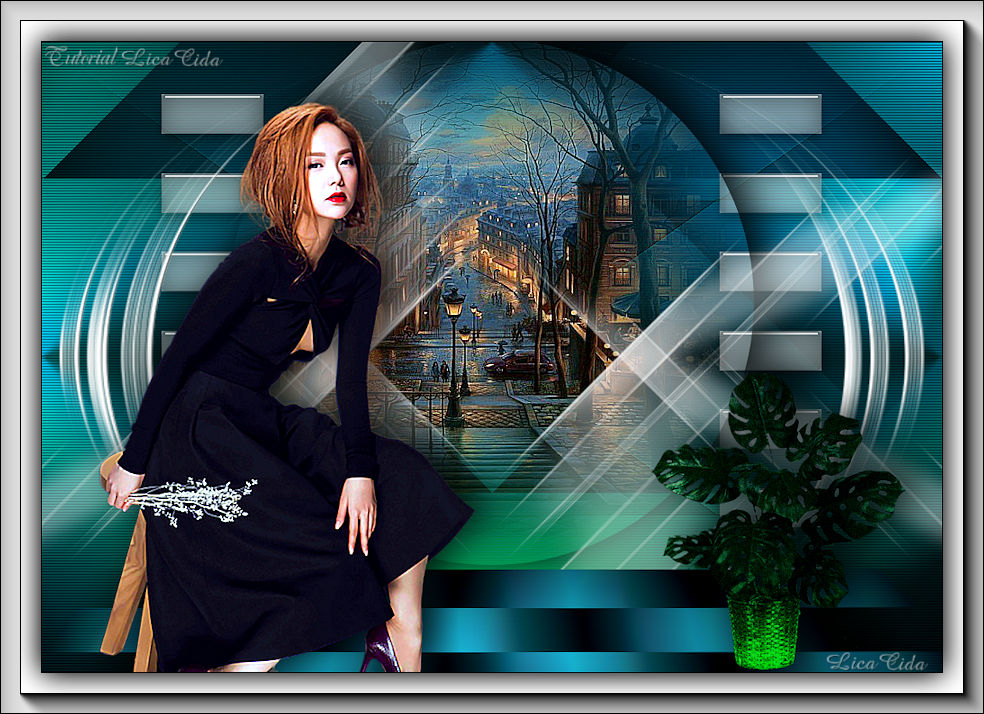
Urban City
TRADUÇÕES

MATERIAL

Script: movercity --
Salvar na pasta Scripts-Restricted do PSP.
Caso o script não rode, o efeito segue anexado (scriptrodado).
Preset: Illumination → Lights → Preset_Lights_city --
Salvar na pasta Presets do PSP.
Back: cityback
Tubes: SuizaBella_Ref_AG-001950
_w62rKvQ7Iyw9m-YeC7CyPeM6hs (tube by Moh-Meme)
Mask: maskmp
Decos: SuizaBella Flores4
decocitylc
decocitylc1
Marca-d'água.
Efeitos do PSP.
Versão usada: PSP X9.
PLUGINS
Plugin MuRa's Seamless → Checks with Gradation
Plugin MuRa's Seamless → Emboss at Alpha
Plugin Filter Factory Gallery A → Holidays in Egypt
Plugin Simple → Blintz
Plugin AAA Filters → Transparent Layer Vignette
Plugin AAA Filters → Custom
Plugin PhotoEffex → Scanlines
Plugin AAA Frames → Foto Frame
TUTORIAL
|
Esta seta marca sua linha
Clique e arraste para movê-la
|
|
Configure as cores: Foreground: #001922 — Background: #1ecefc.
1_.
Abra uma nova imagem transparente de 1000 x 700 px.
Pinte com o gradiente formado pelas cores acima.
Configure: Style: Sunburst — Repeats: 0 — Invert marcado — Center Point: H: 50 / V: 50 — Focal Point: H: 50 / V: 50.
2_.
Plugin MuRa's Seamless → Checks with Gradation — Default (0 / 0 / 0 / 255 / 128 / 3 / 2 / 255).
3_.
Rode o script movercity:
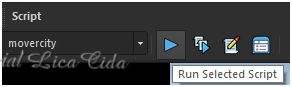
Procure o script movercity e clique em Run Selected Script para rodá-lo.
Caso o script não rode, use o efeito anexado ao material (scriptrodado).
4_.
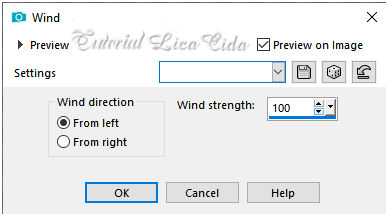
Effects → Distortion Effects → Wind. Faça como nos prints:
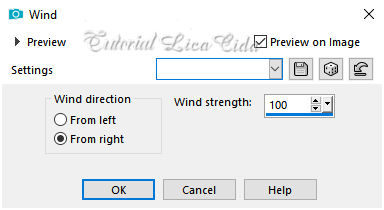
5_.
Layers → New Raster Layer.
Pinte com o gradiente formado no item 1.
Layers → Arrange → Move Down.
6_.
Plugin Filter Factory Gallery A → Holidays in Egypt: 128.
7_.
Plugin Simple → Blintz.
Effects → Reflection Effects → Rotating Mirror: 0 / 180 — Reflect.
8_.
Plugin AAA Filters → Transparent Layer Vignette.
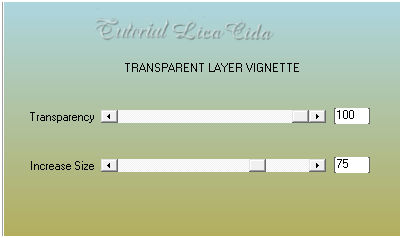
Effects → Image Effects → Seamless Tiling — Default.
Plugin MuRa's Seamless → Emboss at Alpha — Default.
9_.
Edit → Copy no cityback
Edit → Paste As New Layer.
Plugin MuRa's Seamless → Emboss at Alpha — Default.
Blend Mode: Multiply.
10_.
Layers → New Raster Layer.
Layers → Arrange → Send to Bottom.
Pinte com o gradiente formado no item 1.
11_.
Plugin PhotoEffex → Scanlines — Default (1 / 2 / 20 / 10 / 0 / 0) — Vertical Toggle desmarcado.
12_.
Effects → Illumination Effects → Lights → Preset_Lights_city.
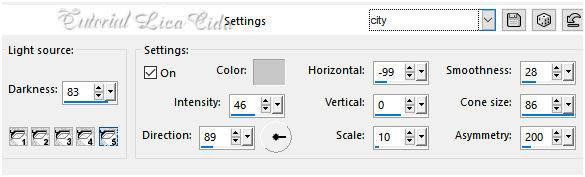
Na layer superior (Raster 2), altere o Blend Mode para Overlay (use a gosto).
13_.
Ative a Raster 3.
Edit → Copy no decocitylc
Edit → Paste As New Layer.
14_.
Layers → New Raster Layer (Raster 6).
Ative a ferramenta Selection Tool (tecla S).
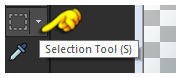
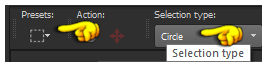
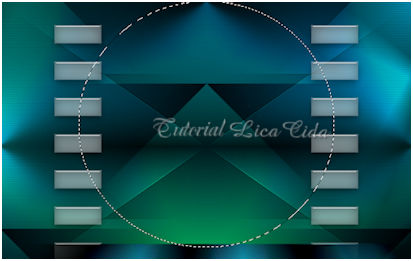
Em Selection Type, marque Circle e selecione como no modelo:
15_.
Edit → Copy no tube _w62rKvQ7Iyw9m-YeC7CyPeM6hs
Edit → Paste Into Selection.
Adjust → Sharpness → Sharpen More.
Plugin AAA Filters → Custom — Landscape (Default).
Effects → 3D Effects → Drop Shadow: -8 / 16 / 80 / 60,00 — Color: #000000.
Selections → Select None.
16_.
Layers → New Raster Layer (Raster 7).
Flood Fill — Opacity: 50% — Color: #ffffff.
Pinte a layer.
Layers → New Mask Layer → From Image: maskmp.
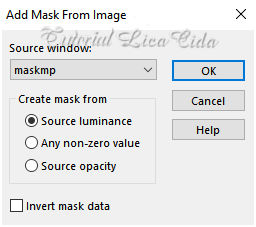
Layers → Merge → Merge Group.
17_.
Effects → Geometric Effects → Skew.
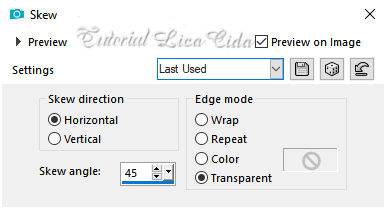
Layers → Duplicate.
Image → Mirror → Mirror Vertical.
Layers → Duplicate.
Image → Mirror → Mirror Horizontal.
Layers → Merge → Merge Down (aplique duas vezes).
Plugin MuRa's Seamless → Emboss at Alpha — Default.
Altere os Blend Modes e a Opacity das layers.
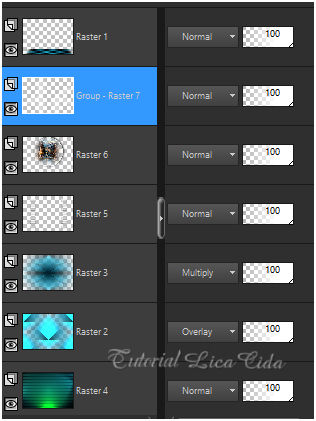
18_.
Edit → Copy no decocitylc1
Edit → Paste As New Layer.
19_.
Ative a Raster 1.
Edit → Copy no SuizaBella Flores4
Edit → Paste As New Layer.
Use a gosto.
20_.
Edit → Copy no tube SuizaBella_Ref_AG-001950
Edit → Paste As New Layer.
Image → Resize: 80% — Resize all layers desmarcado.
Posicione.
Adjust → Sharpness → Sharpen More.
Effects → 3D Effects → Drop Shadow: -8 / 16 / 80 / 60,00 — Color: #000000.
21_.
Image → Add Borders: 1 px, Symmetric marcado — Color: #000000.
Image → Resize: 90%.
22_.
Image → Add Borders: 20 px, Symmetric marcado — Color: #ffffff.
Image → Add Borders: 1 px, Symmetric marcado — Color: #000000.
Image → Add Borders: 20 px, Symmetric marcado — Color: #ffffff.
23_.
Selections → Select All.
Selections → Modify → Contract: 42 px.
Effects → 3D Effects → Drop Shadow: 0 / 0 / 80 / 40,00 — Color: #000000.
Selections → Select None.
24_.
Plugin AAA Frames → Foto Frame — Width: 20 (demais valores Default).
Aplique a marca-d'água.
Assine e salve.
Espero que gostem.
Aparecida / LicaCida, agosto de 2020.
Rio de Janeiro - Brasil.

VOLTAR
Copyright ©2026 - Web Design - Naise Minas
|


